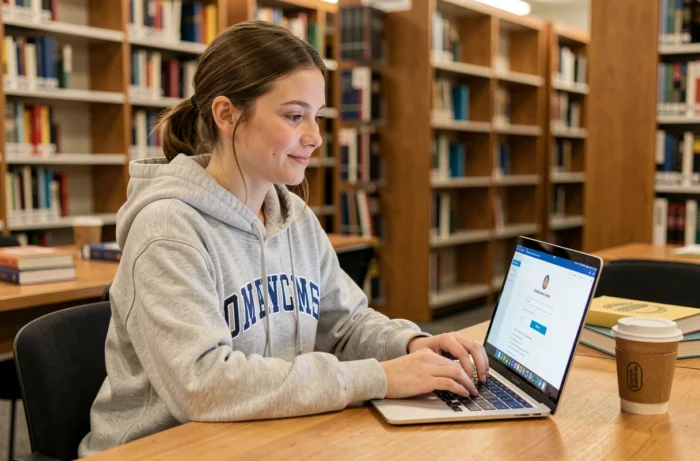
MyCampus Eduservices centralizes grades, schedules, agreements, and educational resources for students in the network (Pigier, ISCOM, MBway, and others). The platform relies on a Microsoft 365 authentication linked to the school account, which means that most login failures do not stem from an incorrect MyCampus password, but from a conflict upstream with the active Microsoft session in the browser.
Understanding this mechanism changes the way to approach each login attempt. Here are the technical points that make the difference between smooth access and an endless redirection loop.
Microsoft Account Conflict: The Blocking Cause Not Indicated by the Error Message
The MyCampus portal redirects the user to a Microsoft 365 authentication page. If a personal Microsoft account (Xbox, Skype, private OneDrive) is already logged in on the same browser, the redirection silently switches to this incorrect account. The result: the MyCampus login fails without an explicit message.
This scenario is common because many students use a single browser for everything, both study and leisure. The active Microsoft session token takes precedence over the school login attempt, and the user ends up in a loop or facing a blank screen.
To facilitate your login to MyCampus Eduservices, the first thing to check is not your MyCampus password, but the active Microsoft account in your browser. A click on your avatar at the top right of any Microsoft page (Outlook, Teams, OneDrive) is enough to see which account is logged in.
Browser Profile Dedicated to the School Account: Comparison of Isolation Methods
Several institutions in the Eduservices network recommend creating a browser profile dedicated to the school account to isolate cookies, session tokens, and Microsoft authentication. This approach significantly reduces unexplained disconnections and redirections to the wrong account.
Three methods allow for session separation. Their advantages and limitations vary depending on usage.
| Method | Cookie Isolation | Session Persistence | Setup Complexity |
|---|---|---|---|
| Dedicated Profile (Chrome or Edge) | Total | Yes, the profile retains the school session | Low (a few clicks in settings) |
| Private Browsing | Total during the session | No, everything is deleted upon closing | None |
| Separate Browser (e.g., Firefox for school, Chrome for personal use) | Total | Yes | Low, but requires two installed browsers |
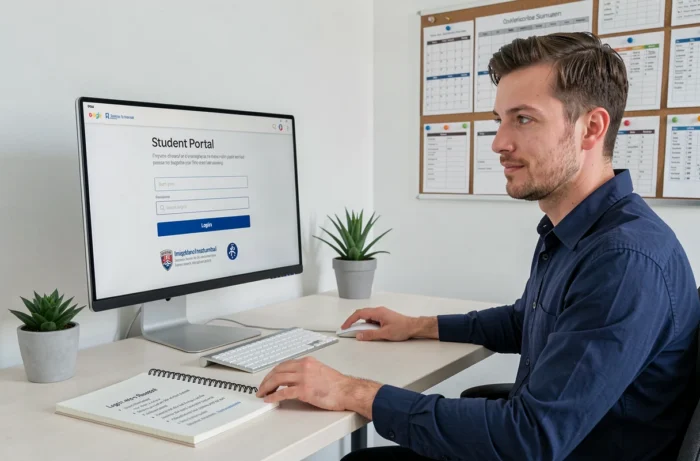
Private browsing resolves the immediate conflict but requires re-entering credentials each time it is opened. The dedicated profile offers the best compromise: one initial setup, then direct access for each session.
On Chrome, creating a profile takes a few seconds via the profile icon at the top right. On Edge, the procedure is the same. Name this profile “School” or “MyCampus” for easy identification at a glance.
MyCampus Password Reset: What Really Happens on the Microsoft 365 Side
When a student clicks on “Forgot Password” from the MyCampus portal, the procedure switches to the Microsoft 365 reset system of the institution. It is not MyCampus that manages the password; it is your school’s Microsoft tenant.
This distinction has a direct consequence: changing your MyCampus password also changes your access to Teams, Outlook, and OneDrive for school. Conversely, if your school resets your Microsoft account (for example, after a security incident), your MyCampus access is also affected.
If there is a persistent blockage after a reset, check these points in order:
- Clear the browser’s cache and cookies, or use the dedicated profile mentioned above to force a new clean authentication
- Ensure that the new password meets the requirements of your school’s Microsoft tenant (minimum length, special character, no reuse of old password)
- Wait a few minutes before trying again, as the propagation of the new password in the Microsoft infrastructure may take a short delay
If the problem persists after these checks, the technical support of your institution is the only contact capable of intervening on the Microsoft tenant. Generic MyCampus support does not have control over each school’s configuration.
Navigation Errors and URL of the MyCampus Eduservices Portal
The official login portal URL is portail.campus-eduservices.fr/login. Variants circulate (mycampus.eduservices.org, old redirect URLs), and some no longer point to the correct authentication page.
Using a saved favorite with the correct URL remains the most reliable method to avoid typing errors. Search engines sometimes return results to outdated pages or third-party sites that mimic the MyCampus interface.
To verify that you are on the correct portal, check for the presence of the SSL certificate (lock icon in the address bar) and the exact domain in the URL. Any page asking for your MyCampus credentials from a different domain should be considered suspicious.
Browser Compatibility and Updates
MyCampus works on recent versions of Chrome, Edge, and Firefox. Safari remains compatible but may exhibit unexpected behaviors with Microsoft authentication, particularly on redirections after session expiration.
Keeping the browser up to date ensures compatibility with Microsoft authentication tokens. An outdated version may prevent the proper storage of session cookies and cause looping disconnections.
The key point that distinguishes stable access from chaotic connection remains the separation of Microsoft environments in the browser. A dedicated profile, a bookmarked URL, and an up-to-date browser eliminate almost all common blocks, without needing to contact support.